What is the Viewmodel
Your in-game hand and weapon can take up a huge chunk of your screen, limiting your first-person mode vision. This is called your viewmodel, and it can often cover up your screen more than they should.


Viewmode Commands
Using the in-game console is the most straightforward method for adjusting your viewmodel. Before you can use it, you’ll need to enable the developer console in CS2’s settings menu. After enabling it, press the tilde key (~) to bring up the console window.
The following commands allow you to customize your viewmodel positioning and field of view:
Viewmodel Commands Explained
These commands require specific numeric values to function properly. Each command uses different parameter ranges, which are detailed in the command list below. Additionally, keep in mind the viewmodel_presetpos 1 command, which restores your viewmodel to its original default configuration if you want to undo your customizations.
viewmodel_fov {54 to 68};
Controls the field of view angle for your weapon and hands. Increasing this value expands how much of your viewmodel appears on screen.
viewmodel_offset_x {-2.5 to 2.5}; – Adjusts the left-right positioning of your weapon model. Use positive numbers to move it right, negative numbers to move it left.
viewmodel_offset_y {-2 to 2}; – Determines how far your weapon appears from the camera. Smaller values bring your hands and weapon closer to your viewpoint.
viewmodel_offset_z {-2 to 2}; – Sets the vertical placement of your weapon model. Decreasing this value positions your hands lower on the screen.
Available commands
- Default
- 0
| 0 / 1 |
- Default
- 60
| FOV |
| X Offset |
| Y Offset |
| Z Offset |
| 1 / 2 / 3 |
- Default
- 21
| Value |
- Default
- 0.4
| Value |
- Default
- 0.25
- Default
- 0.98
- Default
- 1.5
| Viewmodel Shift |
- Default
- 0.75
| Viewmodel Shift |
Best viewmodel settings
Just like crosshairs and DPIs, every player may have different preferences on how they would like to set their viewmodel settings.
However, we can recommend some viewmodel settings that are used by the best Counter Strike players in the world. Feel free to copy their viewmodel settings if you’re having trouble deciding on values!
s1mple viewmodel settings
The table below shows the viewmodel settings that are used by s1mple. You can copy and paste this cfg file to your game:
viewmodel_fov 68
viewmodel_offset_x 2.5
viewmodel_offset_y 0
viewmodel_offset_z -1.5
cl_righthand 1
NiKo viewmodel settings
The table below shows the viewmodel settings that are used by NiKo. You can copy and paste this cfg file to your game:
viewmodel_fov 65
viewmodel_offset_x 2
viewmodel_offset_y 1.5
viewmodel_offset_z -1
cl_righthand 1
Misc Viewmodel Settings
If you’re looking to troll your friends or tilt the rest of the players in your team you can try out some of these viewmode settings:
Brainrot Viewmodel
This one doesn’t really make sense, you are going to be covering half of your screen with your weapon, but fuck it, I would get mad at another player if I had to watch him (not) clutch using this abomination of a viewmodel.
viewmodel_fov 54;
viewmodel_offset_x -2;
viewmodel_offset_y -2;
viewmodel_offset_z 2;
CS 1.6 Viewmodel
This one isn’t complete trash in my book, but it’s not a good look either. Whils’t not being a 1:1 replica of the CS 1.6 viewmodel, it’s as close as you can get with the current state of the game.

viewmodel_fov 54;
viewmodel_offset_x 2;
viewmodel_offset_y -2;
viewmodel_offset_z -2;
Call of Duty Viewmodel
This one is goofy as fuck, if you unironically use this viewmodel I don’t really have words to describe how fucked up your brain is.
Anyhow, I’m just a guy that runs a CS2 website, so I’m in no position to judge anyone.

viewmodel_offset_x -2;
viewmodel_offset_y 2;
viewmodel_offset_z -2;
viewmodel_fov 68;
Crashz Viewmodel Generator Map
It is normal for players to have a hard time adjusting their viewmodel settings using a set of commands. So, community member crashz has created a very useful workshop map, which is called “crashz’ Viewmodel Generator.”
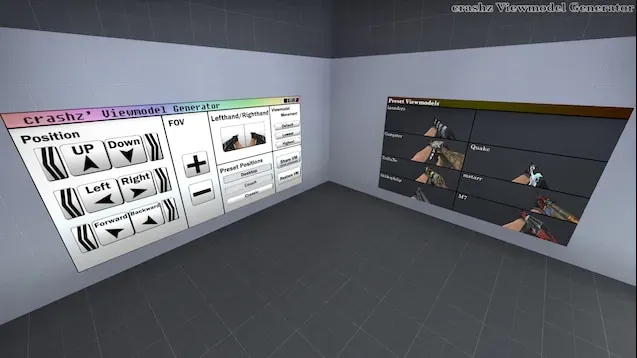
On this map, there are lots of interactive buttons that you can use in order to adjust your viewmodel easily. Consider downloading this map and also check out other cool maps such as this one in our article on workshop maps!

